Using GRASS GIS
Setting up GRASS GIS
If you are unfamiliar with using GRASS, I suggest you look at the following tutorials to make sure you have installed and set up a project on Grass:
- Step 1 and 2 of the the guide written by Doug Newcomb and Paul Lang for a session in the Advanced GIS training for the U. S. Fish and Wildlife Service (CSP7300) in 2015: https://grasswiki.osgeo.org/wiki/Introduction_to_GRASS_GIS_with_terrain_analysis_examples
- An excellent introductory guide on using GRASS GIS for Geomorphologists by Andrew Wickert back in 2012: https://ma.ellak.gr/documents/2015/07/grass-gis-for-geomorphologists-an-introductory-guide-2.pdf
Starting a new Project in GRASS GIS
Create a new project location, convention is to use the projected zone e.g. 37n and a location title to describe the project e.g. italy. Click ‘next’ and tick the box for ‘Read projection and datum terms from a georeferenced data file option’ which will pull the projection information from metadata. There are lots of other options for projection of raster data which you can explore. Click ‘next’ and upload your projected dem. Once you’ve done this and click ‘next’ you will see a summary of your selection and corresponding projections. Click ‘Finish‘ to finalise your selection. A pop up window may appear asking if you want to set the default region. Click ‘no’ as the bounding box and resolution will be imported from the raster dem.
Time to start your GRASS session – with your GRASS Location and Mapset ‘PERMANENT’ highlighted, click on ‘Start your GRASS session’. GRASS will load up a graphical user interface (GUI) using two windows - a layer manager and map display. You are now ready to use GRASS.
The following instructions will use the command line interface but this can all be done through the GUI if you prefer this method.
Enabling Extensions
For various of the r.stream.* modules, it is necessary to use g.extension to install these tools as add-ons. The following add-ons are needed for stream network analysis:
GRASS :~ > g.extension r.stream.extract r.stream.basins
Troubleshooting. If you get an error ‘Please install GRASS development package‘, you can install the package from the Linux command line using sudo apt install grass-dev. Then try re-installing the add-ons.
Useful Commands
To check the list of rasters or vector files generated during the hydrological analysis, use:
GRASS :~ > g.list raster
GRASS :~ > g.list vector
Another useful tool to check metadata of the raster or vector layer – which will also tell you what tool and criteria you used to generate the raster layer is ‘r.info raster’.
GRASS :~ > r.info rasterfilename
GRASS :~ > v.info vectorfilename
Grass structure
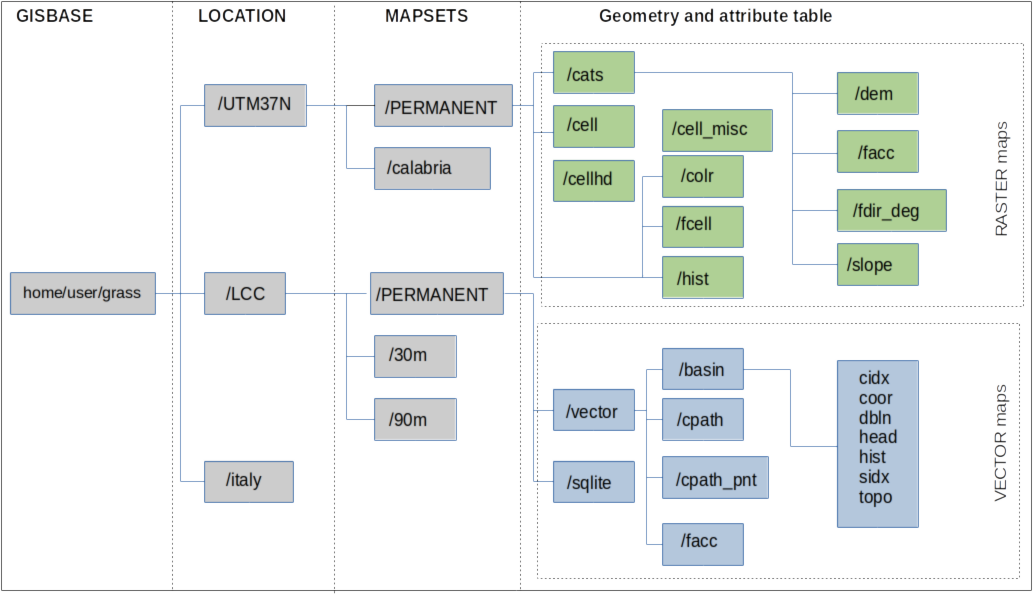
GRASS :~ > Grass internal file structure
GRASS has a strict hierarchy for storing data. The “GISBASE” is the master folder where all grass related projects is stored. A “LOCATION” is usually defined by a coordinate system, map projection or geographical boundary. GRASS will automatically set up the file directory for each new Location. Each Location can have multiple “MAPSETS” which is used to store maps for related projects or subregions. However if working as a team on the same project, it can also be useful to support simultaneous access for multiple user. The ‘PERMANENT’ mapset can only be modified or removed by the owner. Since GRASS has a strict set-up to internally manage its file structure system, make sure that any files are added or deleted from within the GRASS directory.
GIS Data types
Raster. Raster data is a regulary spaced grid (i.e. digital elevation model) and region settings are used to determine the spatial extent and resolution of the grid.
Vector. Vector maps are series of point (coordinates), lines, polygons or volumes (or any combination of these). Typically each feature in a map will be tied to set of attributes layers stored in a database. The data structure of a vector map <some_vector> is stored in the directory $MAPSET/vector/<some_vector>. This directory normally contains the files listed below.
| /head | ASCII file with header information; this is more or less the stuff that v.info displays |
| /dbln | ASCII file that link(s) to attribute table(s) |
| /hist | ASCII file with vector map change history. v.info -h can be used to display this file |
| /coor | binary file for storing the coordinates |
| /topo | binary file for topology |
| /cidx | binary category index |
Sqlite database
GRASS will automatically create an SQLite database. To browse a table stored in a database within a current mapset, you can use sqlitebrowser as a convenient SQLite front-end browser.
# fetch GRASS variables as shell environment variables:
GRASS :~ > eval `g.gisenv`
# use double quotes:
GRASS :~ > sqlitebrowser "$GISDBASE/$LOCATION_NAME/$MAPSET"/sqlite/sqlite.db